
Download NumCapsScroll Indicator – Free Windows & Mac Tool for Caps, Num, Scroll Lock Status
For anyone who spends significant time typing—whether writing articles, coding, or filling out forms—accidentally triggering Caps Lock can be a frustrating and time-consuming mistake. The NumCapsScroll Indicator is a small but powerful utility designed to eliminate that frustration by providing immediate, clear feedback on the status of three often-overlooked keyboard locks: Caps Lock, Num Lock, and Scroll Lock. This free, secure, and easy-to-install tool runs quietly in the background, displaying a sleek three-bar indicator in the system tray and offering a customizable floating panel that stays on top of other windows. Whether you're working on a long document, programming, or using a laptop without a numeric keypad, this software ensures you’re always aware of your keyboard’s current state.
What sets NumCapsScroll Indicator apart is its dual feedback system—visual and audible. When you press Caps Lock, the corresponding bar lights up instantly, accompanied by a subtle click sound (which can be disabled if preferred). This combination of cues is especially beneficial for touch-typists who don’t look at their keyboard while typing, as well as for users with visual impairments who rely on clear, consistent indicators. The floating panel is fully movable and can be resized, making it easy to position where it’s most visible. With a clean, minimal design and low system resource usage, it’s a perfect addition to any productivity-focused setup.
Real-Time Keyboard Lock Monitoring with Visual & Audible Alerts
- Three-Indicator System: Real-time visual feedback for Caps Lock, Num Lock, and Scroll Lock via a compact three-bar display.
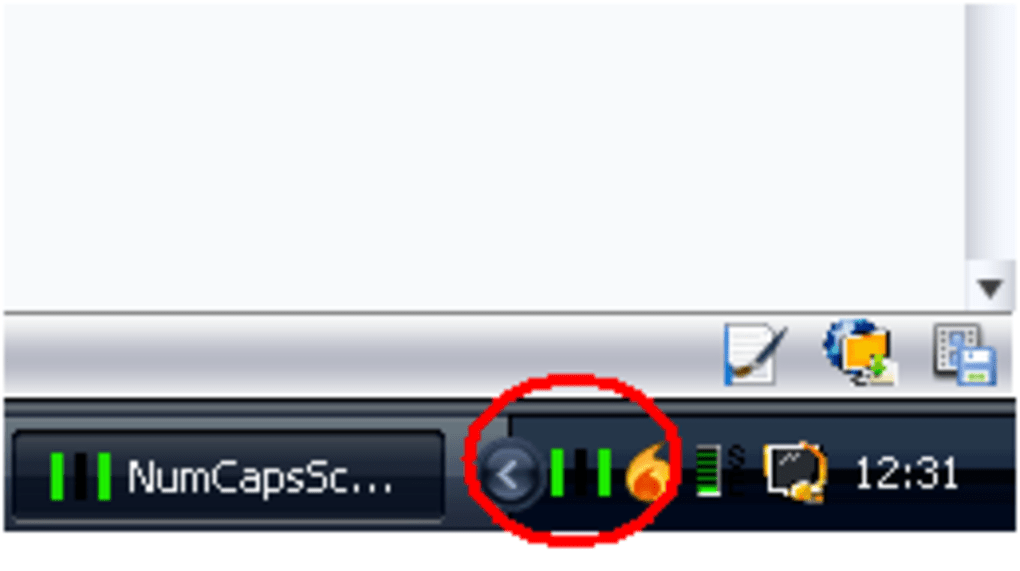
- System Tray Integration: Minimalist indicator appears in the Windows or Mac system tray, saving screen space.
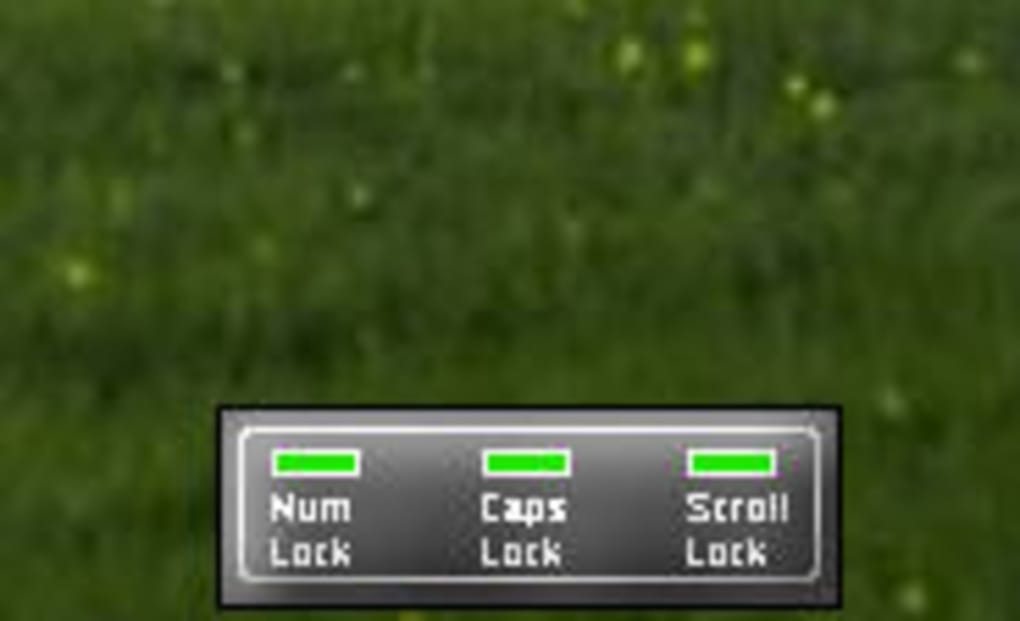
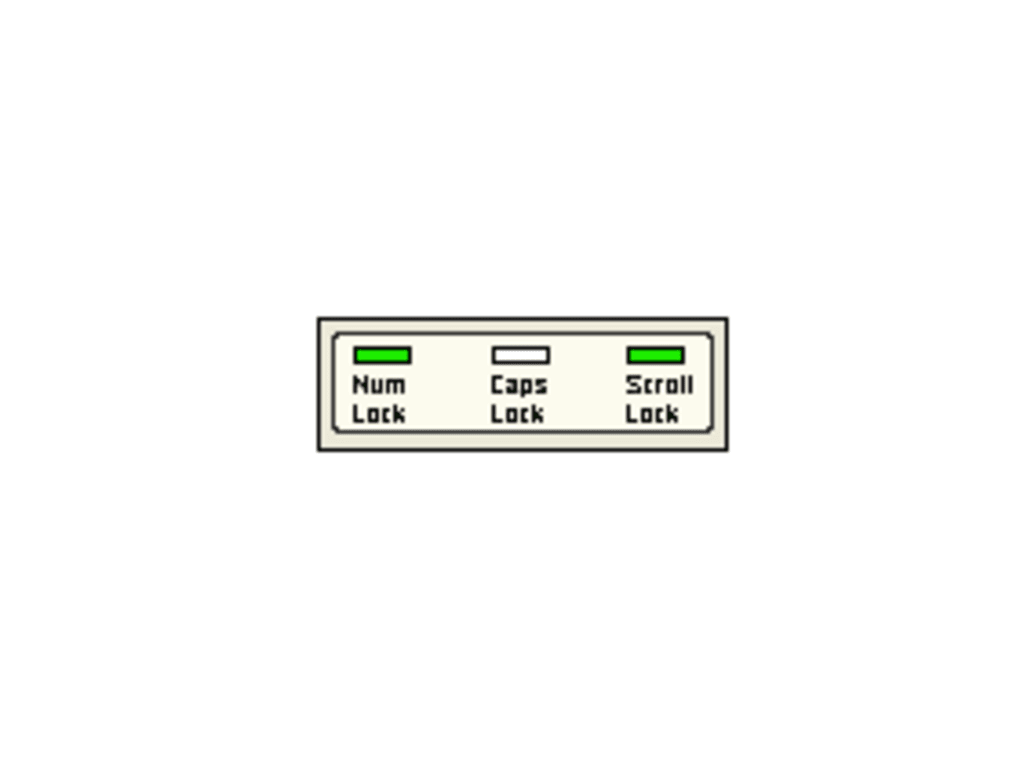
- Floating Panel Mode: A movable, always-on-top panel provides enhanced visibility, ideal for writers and multitaskers.
- Audio Feedback: Subtle click sound confirms key activation—customizable or fully disableable.
- Low Resource Usage: Lightweight design ensures minimal impact on system performance.
- Customizable Appearance: Adjust colors, size, and position to match your desktop preferences.
One of the standout features of NumCapsScroll Indicator is its dual feedback mechanism—visual and auditory. The visual indicator, whether in the system tray or the floating panel, uses color-coded bars to show the active state of each lock key. A bright, glowing bar instantly draws your attention, making it nearly impossible to miss an unintended activation. For users who rely on auditory cues, the optional click sound provides immediate confirmation, which is especially helpful during fast typing sessions or when working in low-light environments.
The floating panel is particularly useful for touch-typists and content creators. Unlike the small system tray icon, the panel remains visible even when other windows are open, ensuring you never lose track of your keyboard state. It’s also fully customizable—drag it to any corner of the screen, resize it, or change the color scheme to match your theme. This level of flexibility makes it suitable for both professional workspaces and casual home use.
Another major advantage is the software’s lightweight nature. It consumes minimal CPU and memory, meaning it runs smoothly even on older machines. There are no intrusive pop-ups, no background processes that slow down your system, and no need for constant updates. The installation process is straightforward—download the file, run the installer, and you’re ready to go. For users who value efficiency and simplicity, this tool delivers exactly what it promises: a reliable, unobtrusive way to monitor keyboard locks.
Easy Installation & Seamless Usage Across Windows and Mac
Getting started with NumCapsScroll Indicator is a breeze. The software is available for both Windows (7 and later) and Mac (10.12 and above), ensuring broad compatibility across modern devices. Simply visit the official download page, choose the correct version for your operating system, and run the installer. The setup process takes less than a minute and requires no technical knowledge. Once installed, the application launches automatically at startup and runs in the background.
After installation, you’ll notice the small three-bar indicator in your system tray. Clicking on it opens a quick menu with options to customize the display, toggle audio feedback, or access the floating panel. The floating panel can be summoned with a single click and moved freely across the screen. You can also set it to “always on top” so it remains visible even when you’re switching between apps. This is especially helpful when writing long-form content, coding, or using multiple monitors.
One of the most user-friendly aspects of this tool is its intuitive interface. There are no complex settings or confusing menus. Everything is accessible through simple clicks. You can disable the audio feedback if you’re in a quiet environment, adjust the brightness of the indicator bars, or even hide the system tray icon if you prefer a cleaner desktop. The software also respects your privacy—no data is collected, no telemetry is sent, and it operates entirely offline.
For users who frequently switch between devices or work in shared environments, the consistent behavior across platforms is a major plus. Whether you’re using a Windows laptop at work or a Mac at home, the experience remains the same. This makes it a reliable companion for professionals who value consistency and productivity.
Pros, Cons & Ideal Use Cases for NumCapsScroll Indicator
Pros
- Free and secure download with no ads or bloatware
- Real-time visual and optional audio feedback for all three lock keys
- Lightweight and low system resource usage
- Customizable floating panel with “always on top” functionality
- Works seamlessly on Windows and Mac systems
- Perfect for touch-typists, writers, and users with visual impairments
Cons
- Scroll Lock indicator is rarely used and may feel redundant
- Lacks an Insert key status indicator (a potential future addition)
- Minimal customization options beyond basic appearance
While the tool excels in its core functionality, it’s important to note that Scroll Lock is a legacy key with limited modern use. As such, its indicator may feel unnecessary to many users. However, for those who still use it—such as in some spreadsheet applications or legacy software—it remains a valuable feature. The absence of an Insert key indicator is another minor drawback, especially for users who frequently edit text and rely on this key’s status.
Despite these small limitations, NumCapsScroll Indicator shines in its niche. It’s ideal for anyone who types a lot—writers, programmers, data entry professionals, and students. It’s also a fantastic tool for individuals with visual impairments who benefit from clear, consistent visual cues. The combination of a clean design, reliable performance, and zero cost makes it a standout choice among keyboard utilities.
Frequently Asked Questions (FAQ)
Conclusion: A Must-Have Tool for Typists and Productivity Enthusiasts
If you’ve ever accidentally typed an entire paragraph in uppercase or struggled to remember if your number pad was active, NumCapsScroll Indicator is the solution you’ve been waiting for. This free, secure, and reliable tool delivers real-time feedback for Caps Lock, Num Lock, and Scroll Lock with a clean, intuitive interface. Whether you’re using it in the system tray or the customizable floating panel, the visual and optional audio cues ensure you never miss a keystroke.
With support for both Windows and Mac, minimal system impact, and a simple installation process, it’s a perfect addition to any productivity toolkit. While the Scroll Lock indicator may be underused, the overall functionality far outweighs this minor limitation. For touch-typists, writers, and users with visual impairments, this tool is nothing short of essential.
Download NumCapsScroll Indicator today and take control of your keyboard experience. It’s a small tool with a big impact—perfect for anyone who values accuracy, efficiency, and peace of mind while typing.







